The Complete Adobe Stock Contributor Guide (2026)
Adobe Stock is where most contributors start — a flat commission, non-exclusive terms, fast review and a huge buyer base built into Creative Cloud. But its search rewards a very specific way of keywording, and the gap between an accepted file and a file that actually sells is almost always metadata. This is the complete, start-to-finish guide: how to apply, prepare files to spec, keyword the way Adobe's search rewards, upload by CSV, and avoid the rejection reasons that quietly cost you the most.
Why Adobe Stock is a good place to start
For a new contributor, Adobe is the gentlest on-ramp. It pays a flat per-sale commission (no confusing lifetime tiers), it's non-exclusive so you can sell the same files elsewhere, review is relatively fast, and the buyer base is enormous because Adobe Stock is wired directly into Photoshop, Illustrator and the rest of Creative Cloud. If you're weighing where to put your effort first, see best stock photo sites to sell on.
Getting set up
You sign up through the Adobe Stock Contributor portal with a free Adobe account, confirm your identity and tax details, and set a payout method. There's no sample-portfolio gate the way Getty has — you can begin uploading right away, and each file is reviewed individually. That low barrier is a double edge: it's easy to start, and just as easy to get a wall of rejections if your files or metadata aren't right. The rest of this guide is about staying on the right side of that line.
Preparing files to spec
Technical rejections are the easiest kind to avoid, so get the file right before you keyword:
- Format & colour. JPEG in the sRGB colour profile.
- Resolution.Between 4 MP and 100 MP. Bigger files (up to the limit) give buyers more crop room.
- File size.Up to 45 MB per file.
- Clean and sharp. No watermarks, timestamps, logos or branding; sharp focus, well lit, no heavy noise or over-processing.
Always check the live page
Categories & releases
Every file is sorted into one of Adobe's 21 content categories (Animals, Business, Food, Landscapes, Lifestyle, Technology, and so on). Adobe will guess one for you, but setting it yourself is more accurate. And any recognisable person needs a signed model release; recognisable private property or artwork may need a property release. Missing releases are one of the most common rejection reasons on the platform — attach the release at upload.
If your work is AI-generated, you must label it
Adobe accepts AI-generated content, but only if you tick the "Created using generative AI" box when you submit. Mislabelling — uploading AI work as a normal photo — is a fast route to rejection or account trouble. The title and keywords still have to honestly describe what's in the frame, exactly as they would for a camera photo.
Keywording the way Adobe's search rewards
This is where files quietly live or die. Adobe's search doesn't read your keywords as a flat bag of words — it weights them by position and rewards a tighter, cleaner list than most people expect. The rules that matter most:
- Order is the single most important thing.Adobe's own guidance calls keyword order "the most critical thing you can do," and the first 10 keywords carry the most weight. Lead with the concrete facts a buyer types; push colours, adjectives and broad single words to the back. Full breakdown in Adobe Stock keyword order.
- Fewer, stronger keywords. Adobe caps at 49 (minimum 5), but the sweet spot is roughly 15–35. Adobe ranks better with a tight, accurate list — padding to 49 dilutes relevance, the opposite of Getty.
- Put your title's words in the top 10.Adobe says this earns "an extra bump in search relevance." A title and leading keywords that agree send one clean signal about the subject.
- Singular nouns, separate descriptors."cat," not "cats." Don't combine descriptors into phrases nobody searches ("white fluffy puppy") — split them into white, fluffy, puppy. Adjectives should be descriptive (red, sunny), never subjective (beautiful, cute).
- Object shots: add both "No People" and "Nobody." Buyers filter on both.
None of that is hard to understand — it is just slow to do by hand, five rules deep, on every file in a batch. Our Adobe Stock keyword generator applies all five in one pass: it writes the list, orders it strongest-first, keeps it inside Adobe's 49-keyword cap and pulls the title's words into the top ten.
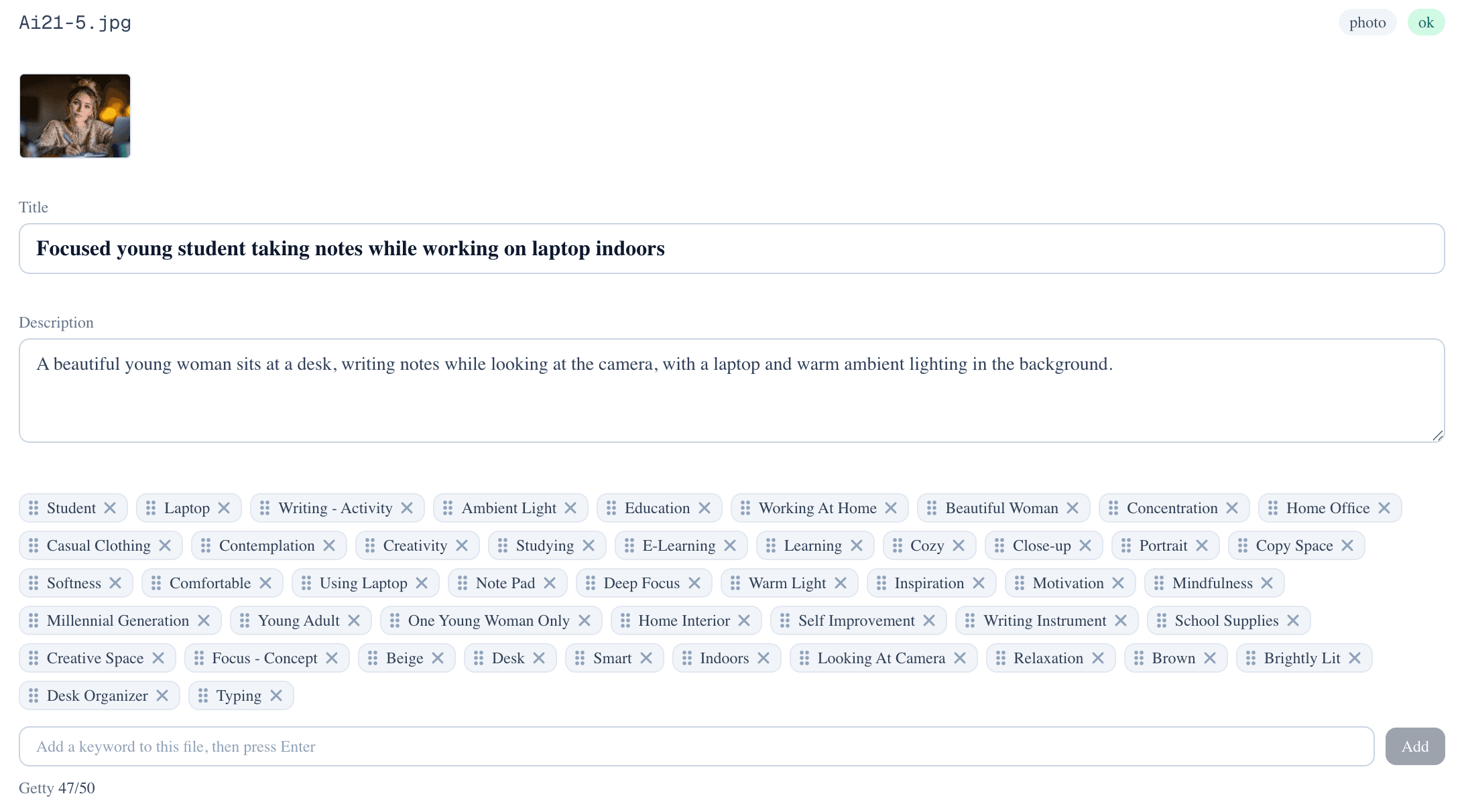
Hand-sorting 30 keywords into the right order, file after file, is the work that burns evenings. PixTagger returns them already ordered strongest-first, capped to Adobe's 49.
Try the Adobe keyword generatorThe mistakes that quietly kill Adobe sales
The flip side of the rules above — alphabetical order, colours-first, synonym stuffing, generic words leading the file — is covered file by file in 7 Adobe Stock metadata mistakes.
Titles: factual, not poetic
Keep titles to about 70 characters, written as a plain, readable description of what the image is — not a sentence, not a poem, not a keyword list. No brand names, no personal names, no IP. The title also becomes part of the file's URL, so a clear factual title does double duty for search.
Don't upload near-duplicates
A burst of near-identical frames with identical keywords doesn't multiply your inventory — the frames compete against each other for the same search, and some agencies reject them as duplicate content. Keep the genuinely distinct frames and give each a different true leading keyword so they cover different searches. We wrote that up in why similar shots need different keywords.
Uploading, and the multi-agency keyword trap
You can drag files straight into the Contributor portal and fill metadata there, or — much faster at volume — import a CSV of filenames, titles and keywords. One thing catches contributors who also sell on Getty/iStock: the platforms speak different keyword dialects. Adobe uses descriptiveage and gender terms (Young Adult, Mid Adult, Mature Adult; Man, Woman, Nonbinary), while Getty/iStock use numeric age ranges ("30–34 Years"). The same shoot needs Adobe-shaped keywords for Adobe and controlled-vocabulary keywords for Getty — see how every stock agency wants your metadata.
The rejection reasons that cost the most
- Technical quality — noise, softness, over-processing, artefacts, visible sensor dust.
- Missing or wrong releases — recognisable people or property without a signed release.
- Branding & IP — logos, trademarks, recognisable products, watermarks or timestamps in the frame.
- Unlabelled AI content — generative-AI work submitted as a normal photo.
- Similar content — near-duplicate frames uploaded as separate files.
- Poor keywording— spam, wrong order, or subjective words — which doesn't get you rejected, just unfound.
Where PixTagger fits in
Almost everything above is judgment you build with practice. The one step that is pure repetitive labour is the keywording: describing each file, writing a factual title, ordering keywords strongest-first, keeping the list tight, and doing it again for every marketplace. That is the step PixTagger automates.
It runs vision AI over each photo or video, writes a factual title and description, and returns keywords already ordered strongest-first and capped to Adobe's 49 limit— with the title's words carried into the top 10. From that one pass it also exports a Getty controlled-vocabulary CSV, a Shutterstock CSV and XMP sidecars, translating age and gender terms into each platform's dialect automatically. You review and tweak; you don't re-sort 40 words by hand, file after file.
In short
Sources & further reading
Frequently asked questions
- How do I become an Adobe Stock contributor?
- Sign up through the Adobe Stock Contributor portal with a free Adobe account, confirm your identity and tax details, and set a payout method. Unlike Getty, there is no sample-portfolio gate — you can start uploading right away and each file is reviewed individually.
- What are Adobe Stock's photo file requirements?
- JPEG in the sRGB colour profile, resolution between 4MP and 100MP, and up to 45MB per file. Files must be free of watermarks, timestamps, logos and branding, with sharp focus and clean processing. Always confirm the current numbers on Adobe's official requirements page before a big upload.
- How many keywords should I use on Adobe Stock?
- Adobe caps keywords at 49 (minimum 5), but the sweet spot is roughly 15–35. Adobe's search rewards a tight, accurate list — padding to the cap dilutes relevance. Order matters most: the first 10 keywords carry the most weight, so lead with the concrete facts a buyer searches.
- Do I have to label AI-generated content on Adobe Stock?
- Yes. Adobe accepts generative-AI content, but you must tick the 'Created using generative AI' box at submission. Uploading AI work as a normal photo is a fast route to rejection. Titles and keywords must still honestly describe what's in the frame.
- Why are my Adobe Stock submissions rejected?
- The most common reasons are technical quality (noise, softness, over-processing), missing or wrong model/property releases, visible branding, logos, watermarks or IP, unlabelled AI content, and near-duplicate 'similar content'. Poor keywording doesn't get you rejected — it just leaves accepted files unfound.
Written by a working stock contributor
NoSystem Images
Getty Images / iStock exclusive contributor since 2007
PixTagger is built by NoSystem Images, an exclusive Getty Images and iStock contributor since 2007, with a live portfolio of over 57,000 photos and 9,700 videos. Every keywording rule in the app comes from nearly two decades of actually selling on Getty, iStock and Adobe Stock — not from guesswork.
Related guides & tools
- Adobe Stock keyword order — why the first 10 keywords decide your ranking
- 7 Adobe Stock metadata mistakes — the errors that quietly stop buyers finding your work
- Adobe Stock keyword generator — keywords ordered strongest-first, capped to the 49 limit
Stop hand-keywording every upload
PixTagger writes buyer-focused titles, descriptions and marketplace-ready keywords for your photos and videos in seconds — with a Getty controlled-vocabulary CSV, an Adobe CSV, and qHero export built in.